Network bench for iPhone

Tracewell

See public IP, resolver, IPv6, and connection facts on one desk—then run DNS, SSL, header, redirect, and port probes without leaving the app.

Tracewell is built for engineers, IT helpers, and anyone who needs a clear answer about a link or host before they trust it.

Glowing network trace over a dark sonar bay

What Tracewell is for

Each tool on the bench answers one concrete question about a host or URL: names behind an address, certificate trust, response headers, redirect hops, open ports, or Wi‑Fi facts on this device.

  1. Network board

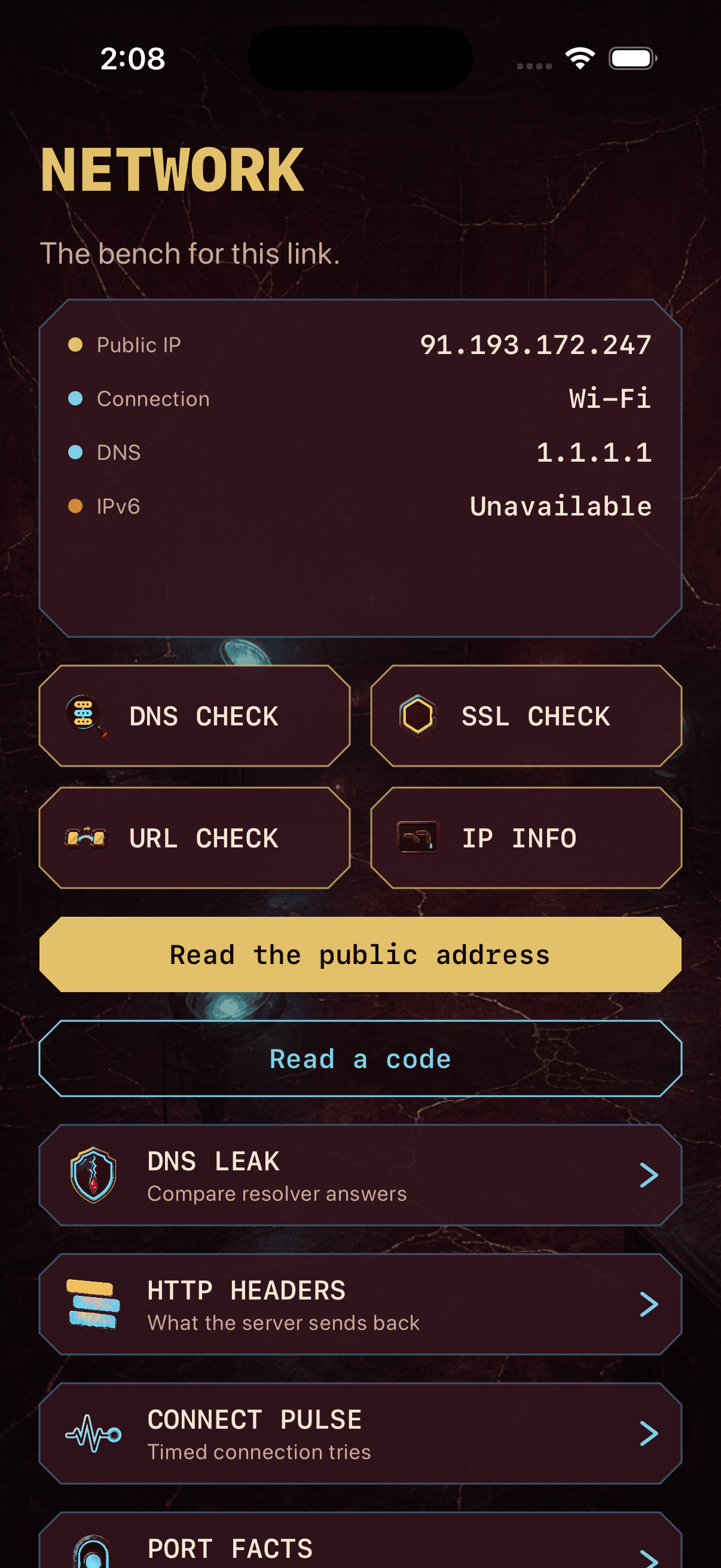
    Start on the Network screen to read your public address, connection type, DNS resolver, and IPv6 status, then open DNS check, SSL seal, URL check, or IP info from the same grid.

  2. Focused probes

    Run header read, DNS leak compare, connect pulse, port facts, and radio facts when you need timing, resolver mismatch, or local Wi‑Fi context alongside a target.

  3. History & traces

    Save results to History with pins, voice notes, or label photos. Re-open a trace to compare earlier runs on this iPhone.

  4. Scan or paste a target

    Type a host, paste a link, or use Read a code on the bench to seed a probe from a printed QR code.

How to use the app

Typical flow from first launch to a saved trace:

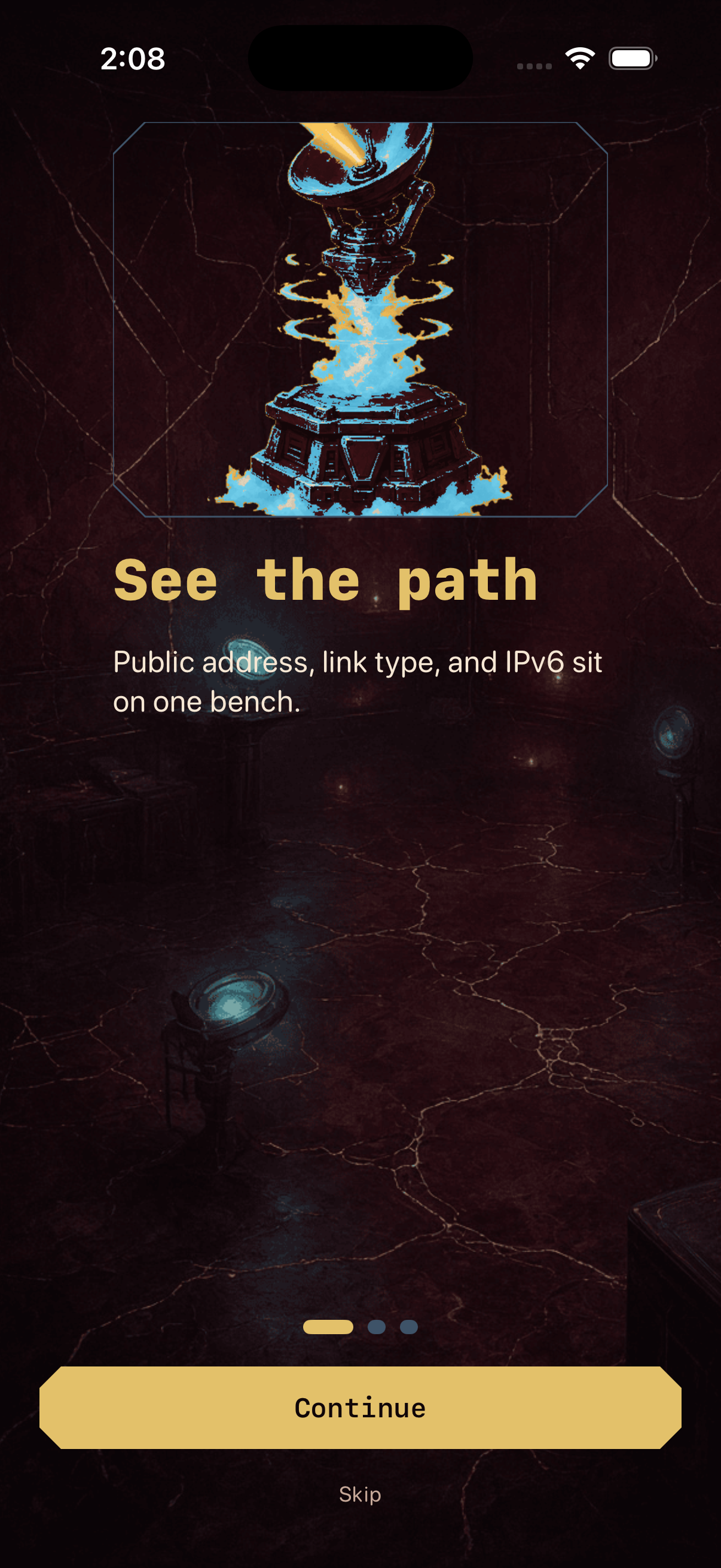
Step 1 Complete the welcome reel or tap Skip, then open the Network tab from the tool rail.
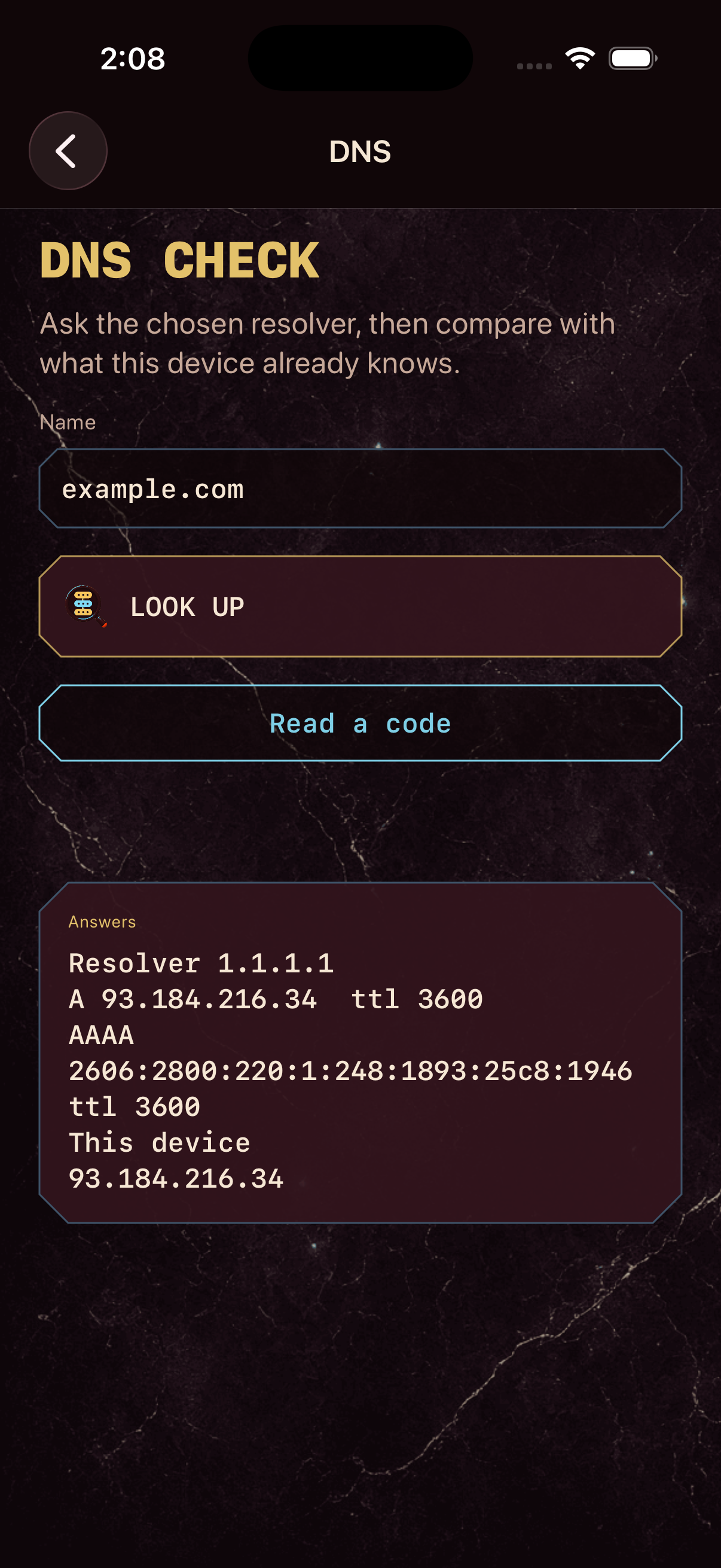
Step 2 Tap a probe tile (for example DNS check or SSL seal), enter a hostname or URL, and run the probe.
Step 3 Read the result panel. Use Open the trace to attach notes, voice, or photos in History.
Step 4 On URL-related probes, tap View the page when you want the live site inside Tracewell (see Web View below).

Built-in Web View

Tracewell uses Apple’s WebKit view (WKWebView) in two places—not as a general browser, but as part of your diagnostic workflow on the same bench.

  1. View the page (live URL)

    After a URL or redirect probe, tap View the page. Tracewell opens that address in a sheet with a built-in Web View so you can see the live page while SSL, headers, and hop results stay on the bench behind it. Scroll and interact with the page normally. Tap Close to return to the probe—nothing is uploaded to Tracewell servers; the page loads directly from the host you entered.

  2. Report (HTML summary)

    On a saved trace in History, open the report action. Tracewell renders a formatted HTML summary of that probe inside the same Web View so you can read targets, status lines, and body text in one scrollable document before you copy or share findings from your device.

The Web View is only shown when you choose View the page or open a report. It does not run in the background, track browsing across sites, or replace Safari—it helps you compare what you see on the wire with what the page actually shows.

Screens

Onboarding, DNS check, and the network bench in the app.

Tracewell onboarding
Onboarding
DNS check screen
DNS check
Network bench
Network bench